Taking Photos with the Camera
Now for the fun part - adding the ability to take photos with the device’s camera using the Capacitor Camera API. We’ll begin with building it for the web, then make some small tweaks to make it work on mobile (iOS and Android).
Photo Gallery Composable
We will create a standalone composition method paired with Vue's Composition API to manage the photos for the gallery.
Create a new file at src/composables/usePhotoGallery.ts and open it up.
Next, define a new method, usePhotoGallery(), that will contain the core logic to take a device photo and save it to the filesystem. Let’s start by opening the device camera.
import { Camera, CameraResultType, CameraSource } from '@capacitor/camera';

export const usePhotoGallery = () => {
  const addNewToGallery = async () => {
    // Take a photo
    const capturedPhoto = await Camera.getPhoto({
      resultType: CameraResultType.Uri,
      source: CameraSource.Camera,
      quality: 100,
    });
  };

  return {
    addNewToGallery,
  };
};
Notice the magic here: there's no platform-specific code (web, iOS, or Android)! The Capacitor Camera plugin abstracts that away for us, leaving just one method call - Camera.getPhoto() - that will open up the device's camera and allow us to take photos.
Next, in Tab2Page.vue, import the usePhotoGallery() method and destructure it to call its addNewToGallery() method.
<template>
  <ion-page>
    <ion-header>
      <ion-toolbar>
        <ion-title>Photo Gallery</ion-title>
      </ion-toolbar>
    </ion-header>
    <ion-content :fullscreen="true">
      <ion-header collapse="condense">
        <ion-toolbar>
          <ion-title size="large">Photo Gallery</ion-title>
        </ion-toolbar>
      </ion-header>

      <ion-fab vertical="bottom" horizontal="center" slot="fixed">
        <!-- CHANGE: Add a click event listener to the floating action button. -->
        <ion-fab-button @click="addNewToGallery()">
          <ion-icon :icon="camera"></ion-icon>
        </ion-fab-button>
      </ion-fab>
    </ion-content>
  </ion-page>
</template>

<script setup lang="ts">
import { camera } from 'ionicons/icons';
import { IonPage, IonHeader, IonFab, IonFabButton, IonIcon, IonToolbar, IonTitle, IonContent } from '@ionic/vue';

// CHANGE: Add `usePhotoGallery` import
import { usePhotoGallery } from '@/composables/usePhotoGallery';

// CHANGE: Destructure `addNewToGallery` from `usePhotoGallery()
const { addNewToGallery } = usePhotoGallery();
</script>
If it's not running already, restart the development server in your browser by running ionic serve. On the Photo Gallery tab, click the Camera button. If your computer has a webcam of any sort, a modal window appears. Take a selfie!
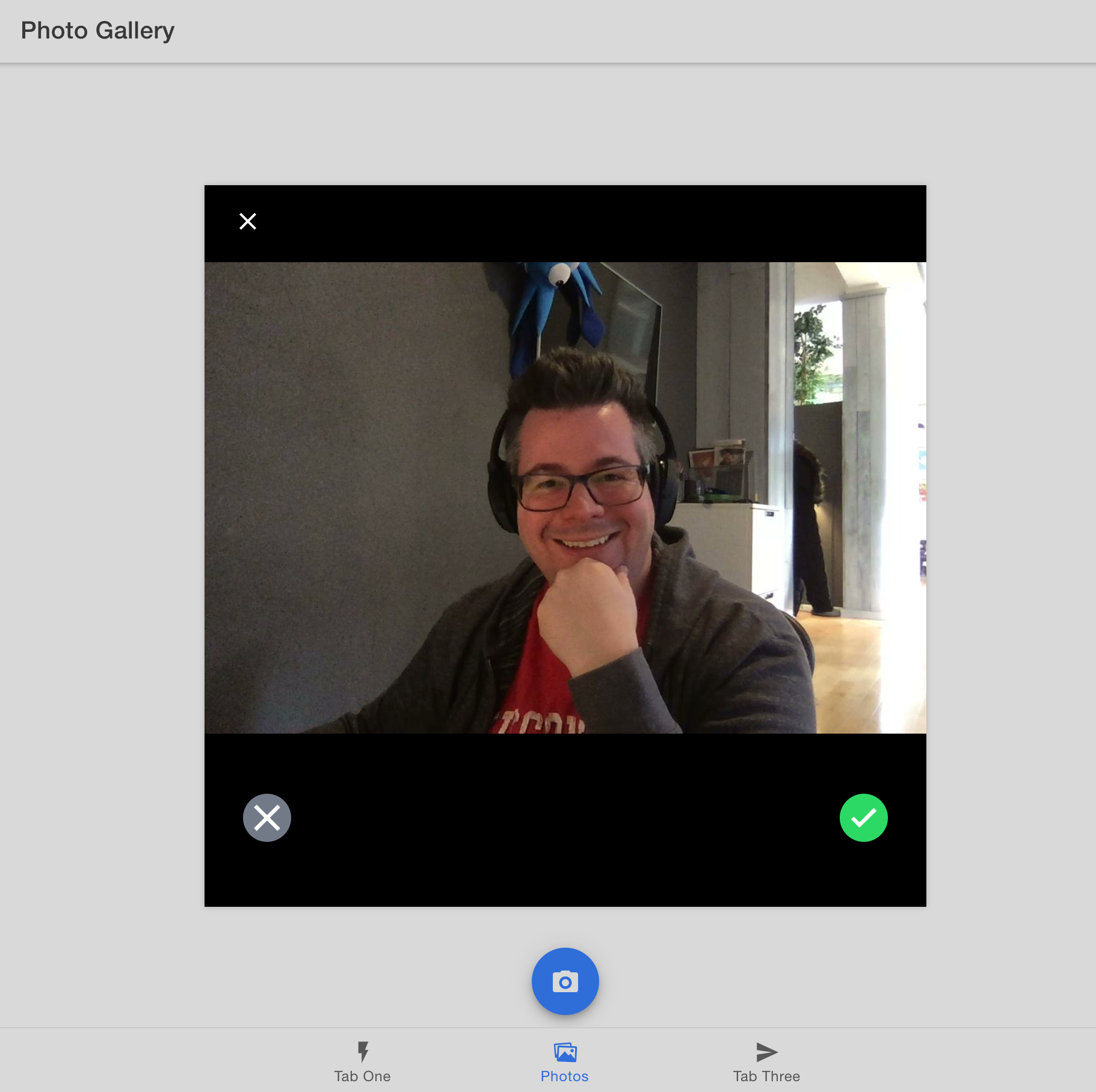
(Your selfie is probably much better than mine)
After taking a photo, it disappears right away. We need to display it within our app and save it for future access.
Displaying Photos
To define the data structure for our photo metadata, create a new interface named UserPhoto. Add this interface at the very bottom of the usePhotoGallery.ts file, immediately after the usePhotoGallery() method definition.
export const usePhotoGallery = () => {
  // ...existing code...
};

// CHANGE: Add the `UserPhoto` interface
export interface UserPhoto {
  filepath: string;
  webviewPath?: string;
}
Above the addNewToGallery() method, define an array of UserPhoto, which will contain a reference to each photo captured with the Camera. Make it a reactive variable using Vue's ref method.
export const usePhotoGallery = () => {
  // CHANGE: Add the `photos` array
  const photos = ref<UserPhoto[]>([]);

  // ...existing code...
};
Over in the addNewToGallery() method, add the newly captured photo to the beginning of the photos array. Then, update the userPhotoGallery() return statement with the photos array.
// CHANGE: Add import
import { ref } from 'vue';
import { Camera, CameraResultType, CameraSource } from '@capacitor/camera';

export const usePhotoGallery = () => {
  const photos = ref<UserPhoto[]>([]);

  const addNewToGallery = async () => {
    // Take a photo
    const capturedPhoto = await Camera.getPhoto({
      resultType: CameraResultType.Uri,
      source: CameraSource.Camera,
      quality: 100,
    });

    // CHANGE: Create the `fileName` with current timestamp
    const fileName = Date.now() + '.jpeg';
    // CHANGE: Create `savedImageFile` matching `UserPhoto` interface
    const savedImageFile = {
      filepath: fileName,
      webviewPath: capturedPhoto.webPath,
    };

    // CHANGE: Update the `photos` array with the new photo
    photos.value = [savedImageFile, ...photos.value];
  };

  return {
    addNewToGallery,
    // CHANGE: Update return statement to include `photos` array
    photos,
  };
};
usePhotoGallery.ts should now look like this:
import { ref } from 'vue';
import { Camera, CameraResultType, CameraSource } from '@capacitor/camera';

export const usePhotoGallery = () => {
  const photos = ref<UserPhoto[]>([]);

  const addNewToGallery = async () => {
    // Take a photo
    const capturedPhoto = await Camera.getPhoto({
      resultType: CameraResultType.Uri,
      source: CameraSource.Camera,
      quality: 100,
    });

    const fileName = Date.now() + '.jpeg';
    const savedImageFile = {
      filepath: fileName,
      webviewPath: capturedPhoto.webPath,
    };

    photos.value = [savedImageFile, ...photos.value];
  };

  return {
    addNewToGallery,
    photos,
  };
};

export interface UserPhoto {
  filepath: string;
  webviewPath?: string;
}
Next, switch to Tab2Page.vue to display the images. We'll add a Grid component to ensure the photos display neatly as they're added to the gallery. Inside the grid, loop through each photo in the UserPhoto's photos array. For each item, add an Image component and set its src property to the photo's path.
<template>
  <ion-page>
    <ion-header>
      <ion-toolbar>
        <ion-title>Photo Gallery</ion-title>
      </ion-toolbar>
    </ion-header>
    <ion-content :fullscreen="true">
      <ion-header collapse="condense">
        <ion-toolbar>
          <ion-title size="large">Photo Gallery</ion-title>
        </ion-toolbar>
      </ion-header>

      <!-- CHANGE: Add a grid component to display the photos -->
      <ion-grid>
        <ion-row>
          <!-- CHANGE: Create a new column and image component for each photo -->
          <ion-col size="6" :key="photo.filepath" v-for="photo in photos">
            <ion-img :src="photo.webviewPath"></ion-img>
          </ion-col>
        </ion-row>
      </ion-grid>

      <ion-fab vertical="bottom" horizontal="center" slot="fixed">
        <!-- CHANGE: Add a click event listener to the floating action button -->
        <ion-fab-button @click="addNewToGallery()">
          <ion-icon :icon="camera"></ion-icon>
        </ion-fab-button>
      </ion-fab>
    </ion-content>
  </ion-page>
</template>

<script setup lang="ts">
import { camera, trash, close } from 'ionicons/icons';
import {
  IonPage,
  IonHeader,
  IonFab,
  IonFabButton,
  IonIcon,
  IonToolbar,
  IonTitle,
  IonContent,
  IonGrid,
  IonRow,
  IonCol,
  IonImg,
} from '@ionic/vue';

import { usePhotoGallery } from '@/composables/usePhotoGallery';

// CHANGE: Add `photos` array to destructure from `usePhotoGallery()`
const { photos, addNewToGallery } = usePhotoGallery();
</script>
Within the web browser, click the camera button and take another photo. This time, the photo is displayed in the Photo Gallery!
Up next, we’ll add support for saving the photos to the filesystem, so they can be retrieved and displayed in our app at a later time.